Documentation
Welcome to Personalytics! This guide covers everything you need to know to analyze your local CSV and Parquet files using SQL queries and interactive visualizations.
Overview
Personalytics is a native macOS desktop application for running SQL queries on local data files. It features:
- Bucket Browser — Browse and explore CSV/Parquet files in any folder
- SQL Query Engine — Powered by a fast OLAP engine
- Interactive Charts — Bar, Line, Area, Pie, Donut, Bubble, and US Map visualizations
- Dashboard Designer — Create multi-panel dashboards with filters
- Fully Offline — All data stays on your computer, no cloud required
The main Personalytics interface
First Launch
When you first open Personalytics, the app will:
- Check if the OLAP engine is installed
- If not found, automatically download and install it
- Display the main interface with the Query tab selected
Bucket Browser
The Bucket Browser lets you explore data files in a selected folder (your "bucket").

Bucket Browser showing files and schema
Setting the Bucket Path
- Click the folder icon in the Bucket Browser panel
- Select a folder containing your CSV or Parquet files
- The file tree will display all matching files
Viewing Schema
Click on any file in the Bucket Browser to view its schema (column names and data types) in the Schema panel on the right.
File Type Toggle
Use the CSV / Parquet toggle at the top to switch between viewing CSV files or Parquet files in your bucket.
- CSV mode: Shows all
.csvfiles in your bucket - Parquet mode: Shows all
.parquetfiles in your bucket
This toggle also affects the {path-to-files} variable in your queries. When set to CSV, queries using {path-to-files} will read CSV files; when set to Parquet, they will read Parquet files.
Query Tab
The Query Tab is where you write and execute SQL queries against your data files.
Query Tab showing SQL editor and results table
Writing Queries
Enter your SQL query in the text area. You can reference files using:
- {path-to-files} variable (recommended):
SELECT * FROM {path-to-files}— automatically uses your bucket path - Relative paths from your bucket:
SELECT * FROM 'data/sales.csv' - Wildcards for multiple files:
SELECT * FROM 'logs/*.csv' - Full paths:
SELECT * FROM '/Users/name/data.parquet'
Running Queries
- Click the Play button to execute the query
- Or press Cmd + Enter
Query Results
Results are displayed as a table by default. For aggregation queries, you can switch to different chart types using the dropdown menu.
Saved Queries
Save frequently used queries for quick access.
Saved Queries dropdown with rename and delete buttons
Saving a Query
- Write and run your query
- Click the Save icon (floppy disk)
- Enter a name for the query
- Click Save
Loading a Saved Query
- Click the Saved Queries dropdown
- Search or scroll to find your query
- Click to load it into the editor
Renaming a Query
- Select the query from the dropdown
- Click the pencil icon (Rename)
- Enter the new name
- Click Rename
The rename operation automatically updates all dashboards that reference the query.
Deleting a Query
- Select the query from the dropdown
- Click the trash icon (Delete)
Charts & Visualization
Personalytics supports multiple chart types for visualizing aggregated query results.
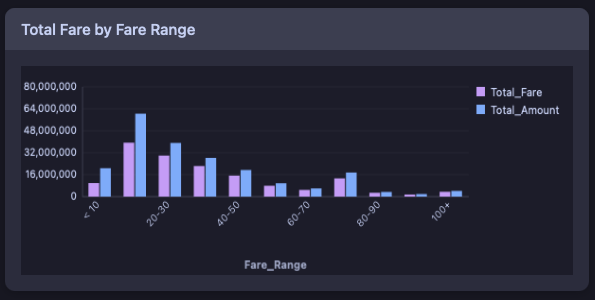
Bar Chart visualization
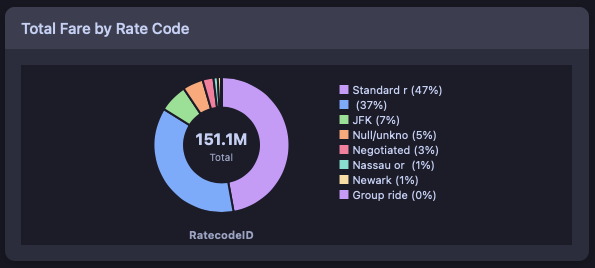
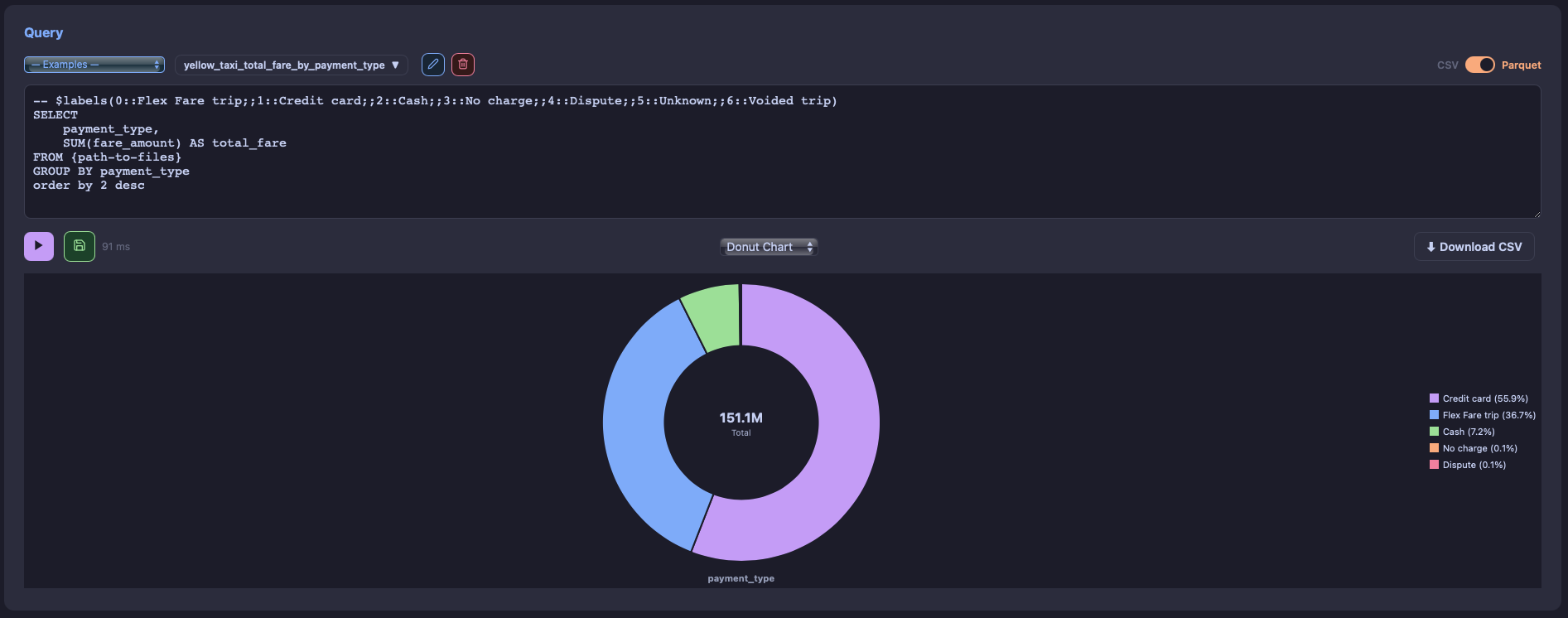
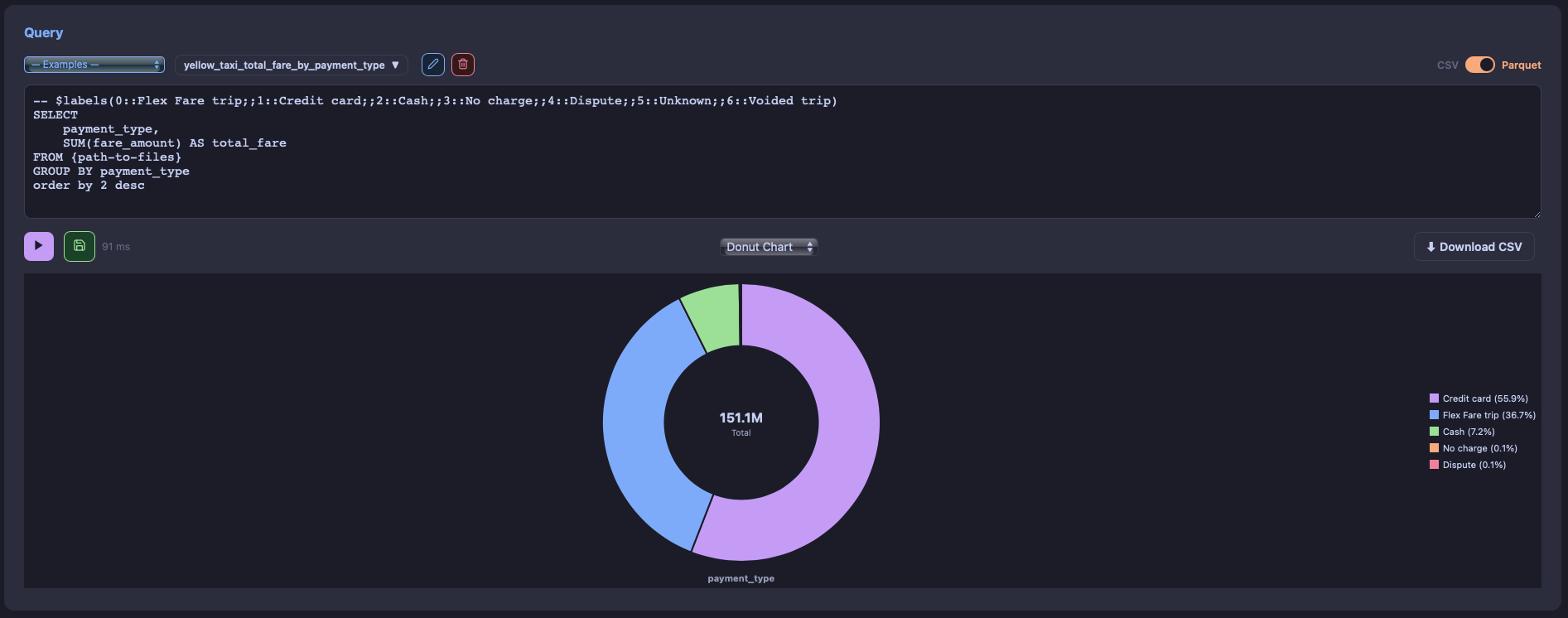
Pie and Donut Chart visualizations
| Chart Type | Best For | Required Columns |
|---|---|---|
| Table | Viewing raw data | Any |
| Paginated Table | Large result sets | Any |
| Bar Chart | Comparing categories | Label + 1+ numeric columns |
| Line Chart | Trends over time | Label + 1+ numeric columns |
| Area Chart | Cumulative trends | Label + 1+ numeric columns |
| Pie Chart | Proportions | Label + 1 numeric column |
| Donut Chart | Proportions with total | Label + 1 numeric column |
| Bubble Chart | 3D comparisons | Label, X, Y, Size |
| US Map | Geographic data | State code + numeric columns |
Chart Tooltips
Hover over any chart element to see detailed values in a tooltip.
Dashboard Designer
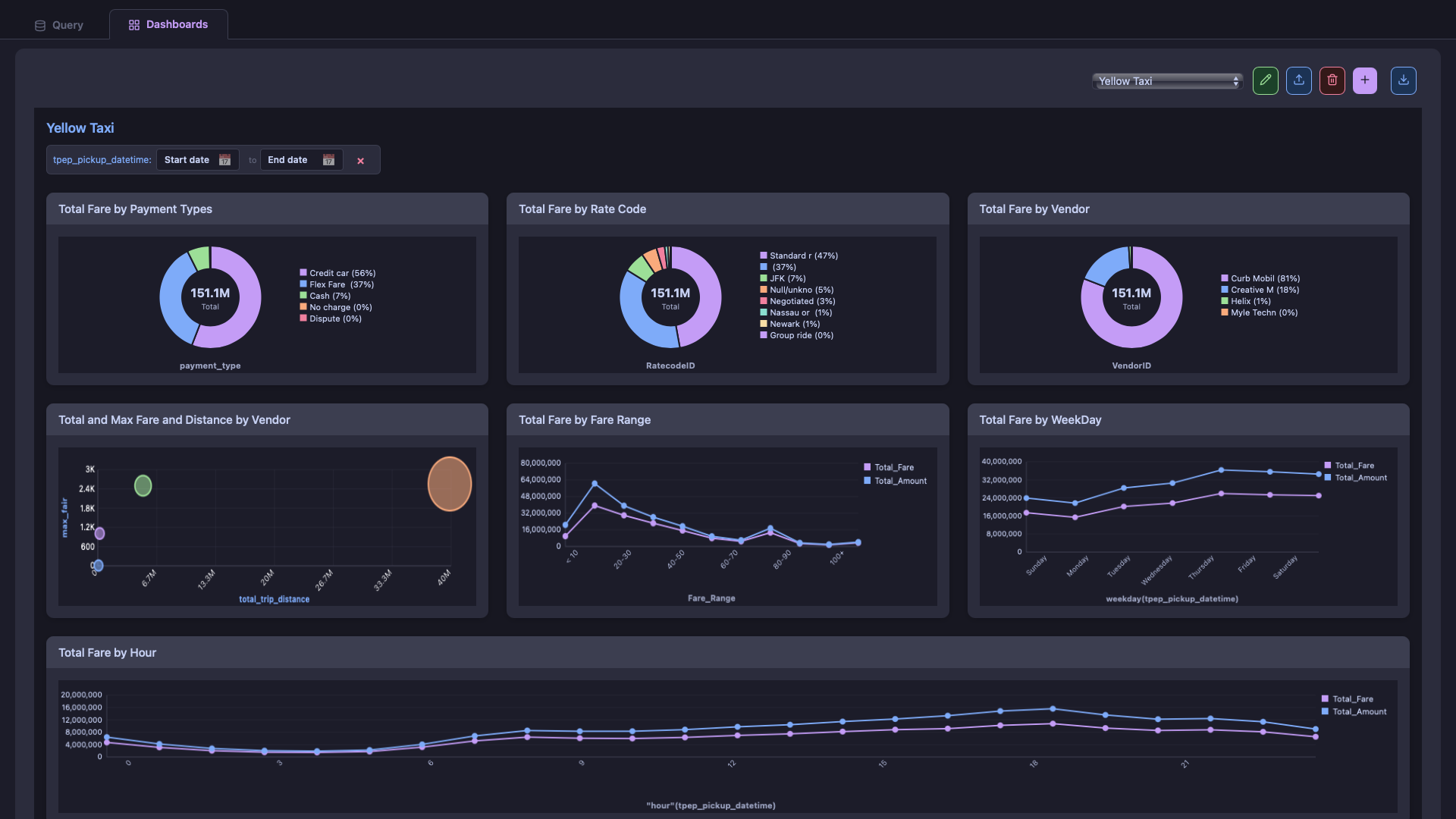
Create interactive dashboards with multiple panels and filters.
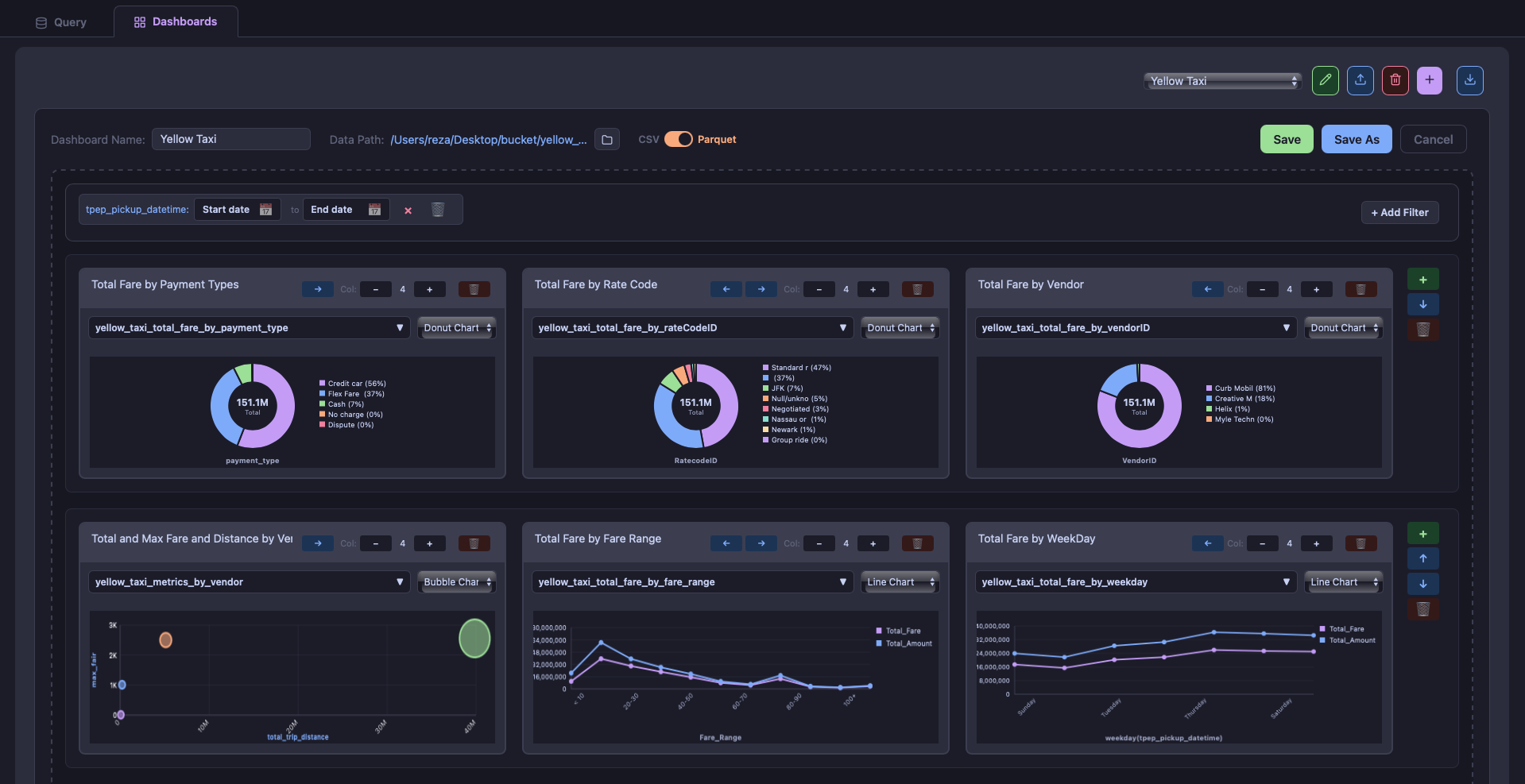
Dashboard Designer with multiple panels
Creating a Dashboard
- Go to the Dashboards tab
- Click New Dashboard
- Enter a name for your dashboard
- Set the Path to Files for your data source
Adding Panels
- Click Add Row to create a new row
- Click Add Panel within a row
- Select a saved query from the dropdown
- Choose a chart type
- Adjust panel width using the slider
Dashboard Filters
Dashboard filters are dropdown controls that let users interactively filter data across all panels. When a filter is applied, every query in the dashboard that contains the filtered column will be updated.
Adding Filters (Edit Mode)
- Click the filter icon in the toolbar while editing
- Choose a column from your data to filter on
- The filter dropdown will appear in the filter bar
- Save the dashboard to persist the filter configuration
Using Filters (View Mode)
- Click on a filter dropdown in the filter bar
- Select one or more values to filter by
- All panels automatically refresh to show filtered data
- Clear the filter by deselecting values or clicking the X
Chart Slicing (Click-to-Filter)
Chart slicing allows you to click on any chart element (bar, pie slice, line point, etc.) to filter all other panels in the dashboard. This creates a powerful drill-down experience.
How It Works
- Click on a bar, pie slice, or data point in any chart
- The clicked element gets highlighted with a blue border
- All other panels (especially paginated tables) filter to show only matching records
- Click elsewhere or on the same element again to clear the filter
Automatic Column Detection
The app automatically detects filterable columns from your query's GROUP BY clause. For example:
SELECT category, SUM(amount) as total
FROM {path-to-files}
GROUP BY category
Clicking on a bar will filter other panels by category = 'clicked_value'.
Date-Based Slicing
Queries using date functions like DATE_TRUNC also support slicing:
SELECT DATE_TRUNC('month', order_date) as month, COUNT(*) as orders
FROM {path-to-files}
GROUP BY 1
Clicking on a month in the chart filters other panels to that specific month.
Range-Based Slicing
For CASE-based range groupings, use the $rangeFilters directive to define click behavior:
-- $rangeFilters(< 100::amount < 100;;100-500::amount >= 100 AND amount < 500;;500+::amount >= 500)
SELECT
  CASE WHEN amount < 100 THEN '< 100'
       WHEN amount < 500 THEN '100-500'
       ELSE '500+' END as range,
  COUNT(*) as count
FROM {path-to-files}
GROUP BY 1
Clicking "100-500" filters other panels to show records where amount >= 100 AND amount < 500.
Saving Dashboards
Click Save to save your dashboard. Changes are persisted locally.
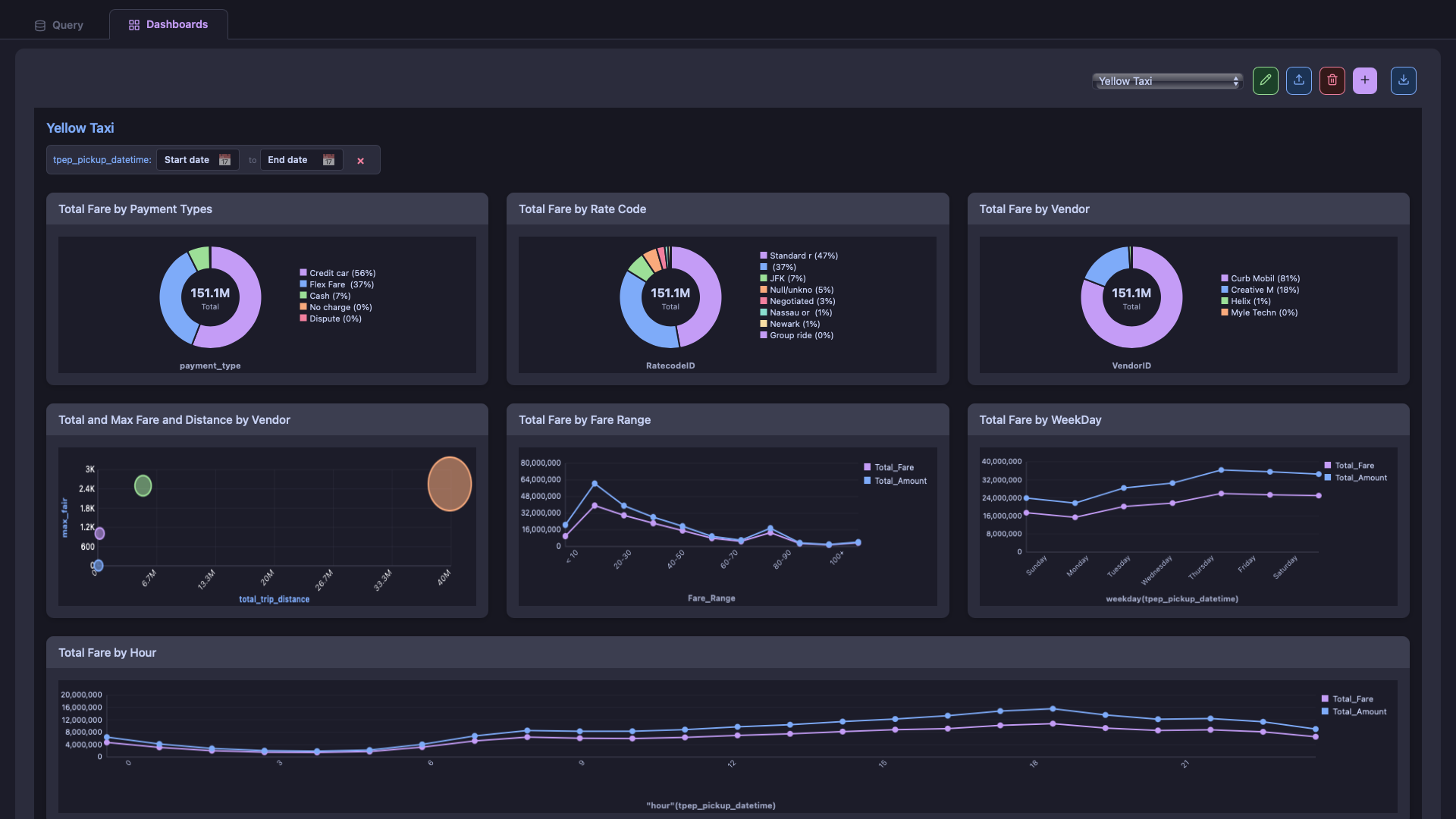
Dashboard view with interactive filters
CSV to Parquet Conversion
Convert CSV files to Parquet format for better performance with large datasets.
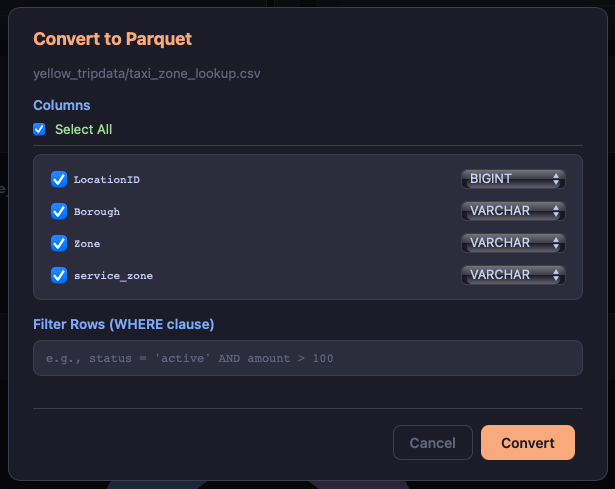
CSV to Parquet conversion modal
- In the Bucket Browser, find the CSV file
- Click the convert icon next to the file
- Select which columns to include
- Optionally add a WHERE clause to filter rows
- Click Convert
SQL Syntax
Personalytics uses standard SQL syntax. Here are some useful patterns:
The {path-to-files} Variable
Use the special {path-to-files} variable as a placeholder for your data source. It automatically expands to include all files in your selected bucket path.
SELECT * FROM {path-to-files} LIMIT 100This gets replaced at runtime with:
- Query Tab: Uses your selected Bucket Browser path (e.g.,
read_csv('/path/to/bucket/**/*.csv')) - Dashboards: Uses the dashboard's configured Data Path
Basic Query
SELECT * FROM {path-to-files} LIMIT 100Aggregation
SELECT category, SUM(amount) as total
FROM {path-to-files}
GROUP BY category
ORDER BY total DESC
Multiple Files (Wildcard)
You can also use explicit wildcards for specific file patterns:
SELECT * FROM 'logs/2024-*.csv'Join Tables
SELECT a.*, b.name
FROM {path-to-files} a
JOIN 'customers.csv' b ON a.customer_id = b.id
Date Functions
SELECT DATE_TRUNC('month', date) as month,
       COUNT(*) as count
FROM {path-to-files}
GROUP BY 1
Labels Directive
Use the $labels directive to map values in the first column to human-readable labels. This is useful when your data contains codes or IDs that you want to display as friendly names.
-- $labels(1::Active;;2::Pending;;3::Closed)
SELECT status, COUNT(*) as count
FROM {path-to-files}
GROUP BY status
This will display "Active", "Pending", "Closed" instead of 1, 2, 3 in charts and tables.
You can also use $labels inside a numeric dashboard filter's Value Labels settings (⚙️ icon) to label that filter's picker values the same way.
Dimensions Directive
Use the $dimensions directive when your label mapping lives in its own CSV or Parquet file instead of being typed inline. It works just like $labels — mapping values in the first column to human-readable names — but looks up the mapping by querying an id/name table from a file at run time.
-- $dimensions(path::dimensions/customers.csv;;idColumn::customer_id;;nameColumn::customer_name)
SELECT customer_id, SUM(amount) as total
FROM {path-to-files}
GROUP BY customer_idpath— path to a.csvor.parquetfile containing the id/name mapping (relative paths resolve against your configured Data Path)idColumn— the column in that file matching the values being grouped onnameColumn— the column in that file holding the display name
Just like $labels, this only applies to the first column and can also be used inside a numeric dashboard filter's Value Labels settings. If both $labels and $dimensions are present in the same comment, $labels entries take precedence for any matching keys — handy for overriding a few values on top of a bulk mapping file.
Range Filters Directive
Use the $rangeFilters directive to create clickable chart segments that filter data by ranges. When you click on a chart slice or bar, it applies the corresponding filter condition.
-- $rangeFilters(< 10::amount < 10;;10-50::amount >= 10 AND amount < 50;;50+::amount >= 50)
SELECT
  CASE
    WHEN amount < 10 THEN '< 10'
    WHEN amount < 50 THEN '10-50'
    ELSE '50+'
  END as range,
  COUNT(*) as count
FROM {path-to-files}
GROUP BY 1
Clicking on the "10-50" segment will filter the dashboard to show only records where amount >= 10 AND amount < 50.
Keyboard Shortcuts
| Action | Shortcut |
|---|---|
| Run Query | Cmd + Enter |
Frequently Asked Questions
Where is my data stored?
All your data stays on your local machine. Personalytics never sends data to any server. Saved queries and dashboards are stored locally on your computer.
Why is my query slow?
- Consider converting large CSV files to Parquet format
- Add LIMIT clauses when exploring data
- Use WHERE clauses to filter early
- Avoid SELECT * on wide tables
Can I query remote files?
Currently, Personalytics only supports local files. Network drives may work if mounted locally.
The app won't open (security warning)
Right-click the app in Finder and select "Open" to bypass macOS Gatekeeper on first launch.